
Remote workstations and clusters
The workbench can send jobs over SSH to a Linux workstation, which runs them in Docker or Apptainer containers, and to a cluster that uses the Slurm job scheduler, which runs them in Apptainer. Each machine that runs jobs is called a target. The workbench keeps one SSH connection open per target, and you open and approve each connection yourself. If the connection drops, the jobs keep running on the remote machine, and the workbench collects their results when you reconnect.
The full reference is docs/guides/remote-targets.md in the repository.
Add a workstation
Section titled “Add a workstation”uv run qcw targets add-ssh ws --host ws.example.org --user alex \ --root /home/alex/qcw --runtime docker --image qcw-engine:0.1.0--rootis the workbench’s folder on the workstation, as an absolute path.--runtime apptainer --image /path/to/engine.sifuses Apptainer instead of Docker.--key FILEsets the private key file to use. The workbench also reads~/.ssh/config, for example for ProxyJump.--max-concurrent Nsets how many jobs run at once (default 1).
Add a cluster
Section titled “Add a cluster”uv run qcw targets add-slurm hpc --host hpc.example.org --user clg_x \ --root /home/clg_x/scratch/qcw --partition compute --module apptainer/1.4.5--partitionand--accountset the Slurm partition and account.--cpus-per-job(default 8),--mem,--time-limit(24:00:00 by default, a provisional value),--gpusand--gpu-typeset the resources that each job requests.--directive --qos=normaladds an extra#SBATCHline to the batch script.
Log in
Section titled “Log in”- Run
uv run qcw targets connect hpc --wait 300. - Switch to the workbench window, which first shows the host’s key fingerprint. Trust it only if it matches the fingerprint your institution publishes for that machine.
- Answer the password, Duo or device-code prompts in the same window. The workbench never shows these prompts in the terminal.
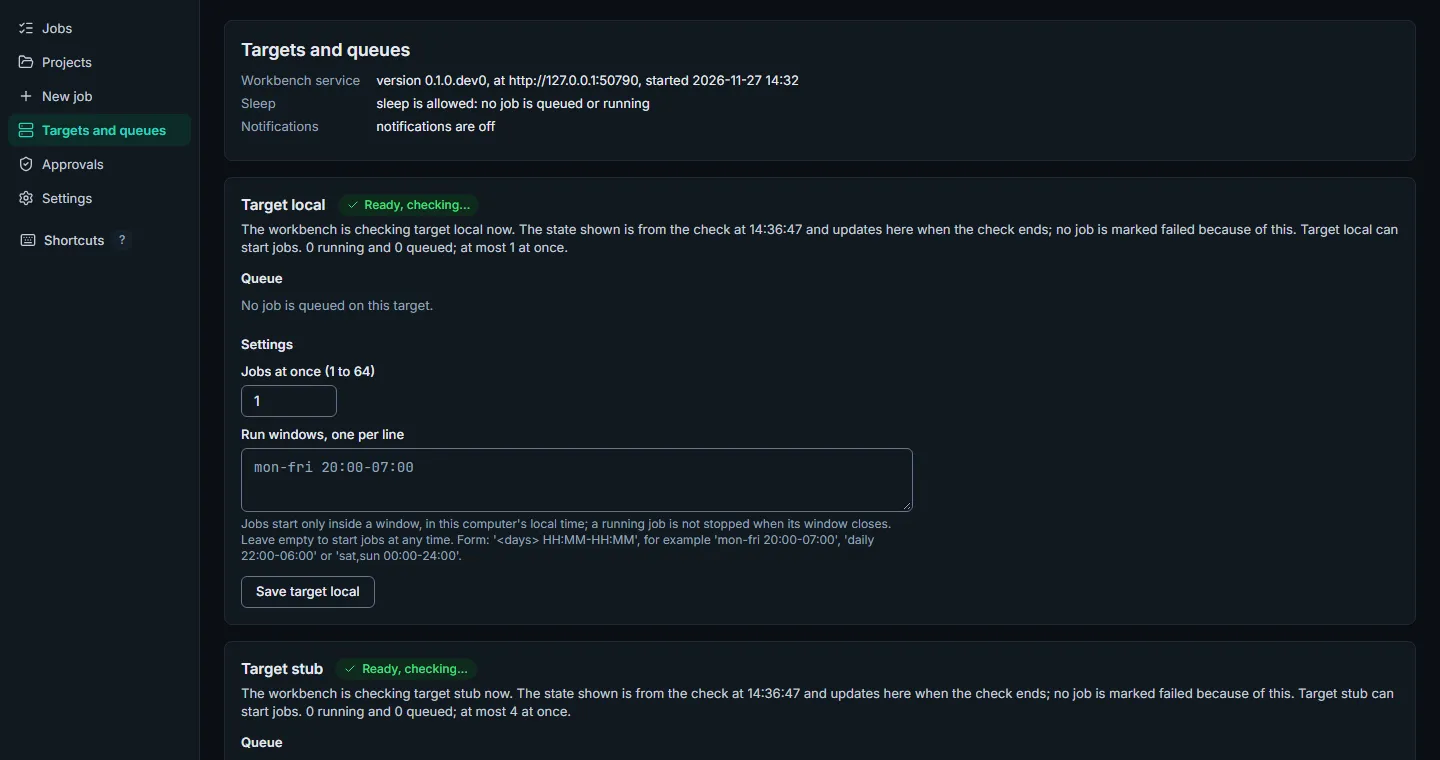
- Open Targets and queues to see the connection. The state
connectedmeans the workbench can submit and check jobs on that target.
Put the engine on the target
Section titled “Put the engine on the target”uv run qcw targets image build hpcThe workbench uploads the local engine image, checks its SHA-256 checksum on the remote machine and builds the Apptainer image file (a SIF file) there. On a cluster, the build runs as a Slurm job, because other users share the login nodes. Run uv run qcw targets show hpc to follow the build.
Run a job
Section titled “Run a job”On the New job form, choose the remote target under Where and when. Jobs submitted from the command line to a cluster wait for your approval in the workbench window.
The job page shows the job’s last known state and when it was confirmed. If your login session ends, the job keeps running. When you connect again, the workbench reads the job’s state from the Slurm commands squeue and sacct and from the job folder.
Try it without an engine image
Section titled “Try it without an engine image”If you add --stub to add-ssh or add-slurm, the target runs no calculation. Each remote job waits a moment, and the workbench then writes a placeholder result that is labelled as such, so you can rehearse the whole process before you set up the engine.
Limits to know
Section titled “Limits to know”- Workstations must run Linux with Docker or Apptainer.
- The workbench does not delete job folders on the remote machine, so the cluster’s own rules for clearing old files from scratch storage apply.
- On a Slurm cluster, a run window sets the earliest time a job can start, and Slurm may start the job later if the cluster is busy.
An open-source project on GitHub. Built by Graham Morley.